
How to Copy Text from a Photo on iPhone and Keep It Useful
Turn a screenshot, printed note, or photographed address into text you can actually use. Then clean it up and save the part you will need again.
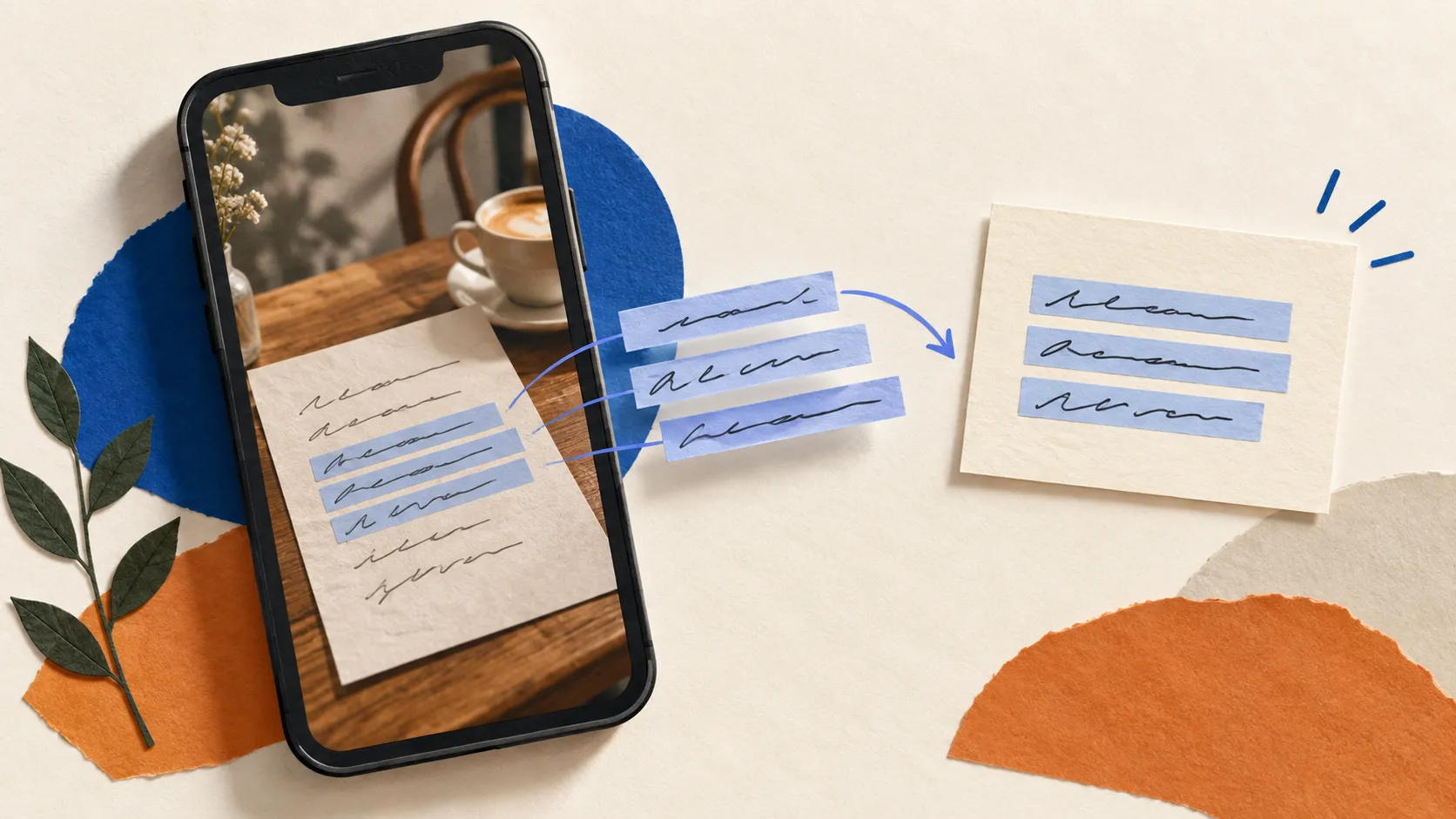
A client sends the delivery address as a screenshot. A workshop puts the resource list on a slide. The Wi-Fi instructions are printed on a card. You need the words, but what you have is a picture.
On a supported iPhone, open the image in Photos, touch and hold a word, adjust the selection, and tap Copy. Apple’s built-in Live Text handles the extraction. The more useful habit comes immediately afterward: check what it copied, give it enough context, and save it somewhere you can find it again.
This guide covers both steps. The aim is a usable address, instruction, or reference, rather than another screenshot you will have to hunt down.
Copy text from a photo or screenshot
- Open Photos and open the image at full size.
- Touch and hold a word in the image. Move the selection handles until they cover the text you need.
- Tap Copy. If selection is awkward, tap the Live Text button near the lower-right corner to highlight recognized text first.
- Open your destination, tap an editable text field, and choose Paste.
Apple documents these steps in its Live Text support guide. It lists iPhone XS, iPhone XR, or later with iOS 15 or later as the requirement. If Live Text is disabled, look under Settings → General → Language & Region → Live Text. Availability varies by language and region.
For text in a video, pause on the frame before selecting it; Apple requires iOS 16 or later for that feature. You can also point Camera at printed text and tap the Live Text button when it appears.
Select the useful fragment, not the whole image
“Select All” is convenient when a photo contains one paragraph. It is less helpful when a screenshot includes a status bar, a conversation, a footer, and the address you actually need.
Start with the smallest complete unit that answers your next question. For an address, that might be the recipient, building, street, city, and postal code. For an event, it might be the title, date, start time, and venue. For an instruction, include the condition that makes it apply.
Consider this fictional delivery note:
Deliver to the studio entrance on Willow Lane. Reception closes at 5 pm. For Saturday deliveries, use the courtyard bell.
Saving only “use the courtyard bell” loses the Saturday condition. Saving the whole screenshot preserves it but makes the useful sentence harder to reuse. Extracting the complete instruction gives you both meaning and portability.
Check the text before relying on it
Text recognition is a starting point. Review the pasted result against the original image, especially where one character changes the meaning.
| What you copied | What to check | How to keep it useful |
|---|---|---|
| An address | Unit number, postcode, and line order | Keep the recipient and delivery instruction together |
| A reference number | Zero versus O, one versus I, missing spaces | Compare each character with the source |
| An event detail | Date, time, and any timezone shown | Include the event name so the time has context |
| A quotation | Punctuation, omitted words, attribution | Keep the author and source alongside the extract |
| A web address | Dots, slashes, hyphens, and wrapped lines | Compare the domain before opening or sharing it |
A useful cleanup pass has three parts: fix obvious recognition errors, remove accidental line breaks, and preserve the original meaning. If the text is a quotation, do not silently rewrite it into smoother prose. If it is an instruction, keep qualifiers such as “after 6 pm” or “weekdays only.”
For multi-column pages, check reading order carefully. A pasted passage can look grammatical even when the end of one column has been joined to the start of another. When that happens, extract one section at a time.
Turn the result into a reusable snippet
Once the text is correct, decide whether it deserves a permanent place. A one-time verification code does not need a library entry. A studio’s delivery instructions that you send every week probably do.
Use a short, descriptive label and keep the body ready to paste. For the fictional note above, a useful entry would be:
Label: Studio delivery instructions
Text: Deliver to the studio entrance on Willow Lane. Reception closes at 5 pm. For Saturday deliveries, use the courtyard bell.
Put background information somewhere it will not accidentally travel with the message. “Confirmed with reception in September” may be useful to you, but it is not necessarily part of the instruction a courier needs.
In CopyAgain, you can save the cleaned text as a snippet, put it in a category, and pin it if you use it often. The extraction in this workflow happens in Apple’s Photos or Camera app; CopyAgain holds the text you choose to save. It does not need to capture every item you copy for this to work.
If your main problem is finding earlier copies, see our guide to iPhone clipboard history. If you already have a library and want faster access, the next step is setting up shortcuts for frequently pasted text.
When selection does not work
First, separate a missing feature from an unreadable image. Check the device and Live Text setting above. If other clear images work, focus on the picture itself.
Try the original image rather than a compressed preview in a conversation. For a printed page, retake the photo straight on, with even light and the text in focus. For a dense screenshot, work with one paragraph at a time. Enlarging blurry lettering cannot restore detail that the image never captured.
If recognition still fails, manually type the short part you need and compare it with the source. That is often a better use of time than trying to extract an entire page to recover one line.
Keep the source when appearance matters
Editable text and the original image serve different purposes. A snippet is convenient for pasting an instruction; the photo preserves how the instruction appeared. Keep both when you need the surrounding context, a diagram, or the original layout.
Before you finish, do one practical check: find the saved item using the words you would naturally search next week. If you would search “studio entrance,” make sure those words are present. A successful extraction is only half the job. Being able to retrieve the right fragment later is what makes it worth saving.
Common questions
Do I need a separate app to copy text from a photo?
No. On a supported iPhone, Live Text lets you select and copy text from an image in Photos. A separate notes or snippet app is useful only if you want to organize the extracted text for later.
Can I copy text from a screenshot?
Open the screenshot in Photos and try selecting a word with Live Text. The text needs to be recognizable; tiny lettering, blur, or a busy background can make extraction difficult.
Will copying text preserve the original layout?
Do not assume it will. Check paragraph breaks, reading order, and punctuation after pasting, especially when the image contains columns or a table. Keep the original image if its layout matters.